 Bookmark Scout
Settings
Every setting on Bookmark Scout's settings page, tab by tab, with its default and what it changes.
Open the settings page from the extension's Options entry, for example by right-clicking the toolbar icon in Chrome and choosing Options. Changes save as you make them.
Using the settings page
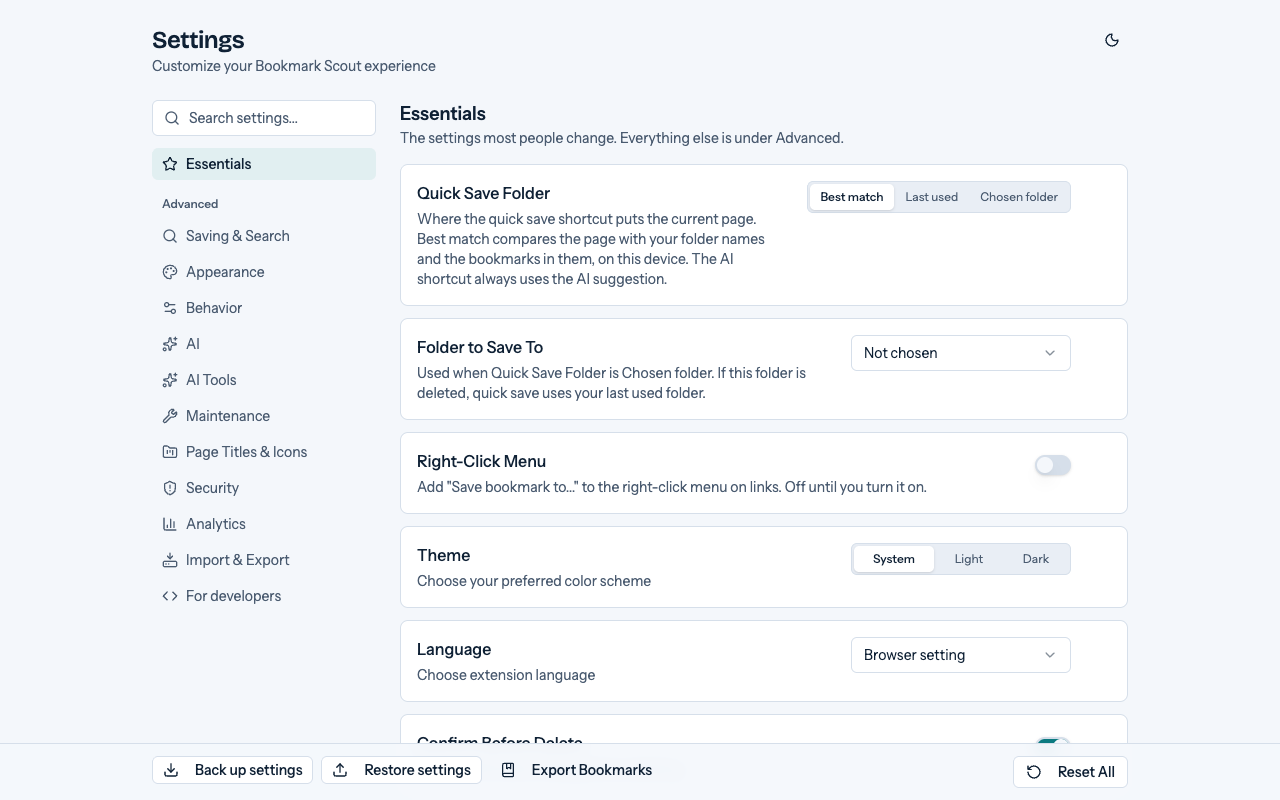
- The page opens on Essentials, the few settings most people change. Every other tab is listed under Advanced, and each setting on Essentials is also in its own tab there: changing it in either place changes the same setting.
- Search settings... at the top finds a setting in any tab and says how many match.
- Each tab is split into titled sections. A tool's on/off switch sits next to its heading; while it is off, the rest of its settings are folded away. Technical settings, such as timeouts and file name lengths, are under Advanced settings, which stays closed until you open it or a search finds something in it.
- A changed setting is marked Modified, with a button to reset it to its default. Reset All resets every setting.
- Back up settings saves a backup file with the settings you changed, custom prompts, AI services (name, provider, model, Base URL, and provider-specific fields; never API keys or Extra Headers JSON), saved searches, and the manager table's columns and sort. Restore settings restores a backup, replacing each part the file holds, or merges a plain settings file onto your settings; after restoring a backup, enter API keys and extra headers again under AI for the services marked Needs setup. Neither touches your bookmarks. Export Bookmarks next to them opens the bookmarks manager on its export tool; see Import and export.
- Settings you change are stored in the browser's sync storage, so they follow you to other devices when browser sync is on. A few that belong to one device stay on it: the folder chosen for quick save, Icon Storage Limit, AI activity recording, and Ask AI's web search. AI services, with their API keys, Base URL, and Extra Headers JSON, also stay on this device. See Privacy.
Essentials
| Setting | Also on | What it does |
|---|---|---|
| Quick Save Folder and Folder to Save To | Saving & Search | Where the quick save shortcut saves the current page |
| Right-Click Menu | Saving & Search | Show Save bookmark to... when you right-click a link |
| Theme and Language | Appearance | How Bookmark Scout looks and which language it uses |
| Confirm Before Delete | Behavior | Ask before deleting |
Below them, AI is optional says that Bookmark Scout works without AI; Set up AI opens the AI tab.
Saving & Search
Folder Matches
| Setting | Default | What it does |
|---|---|---|
| Folder Matches | On | While you search, list the folders whose names match above the results, to save the current page there |
| Maximum Folder Matches | 5 | How many matching folders to list |
| Allow Typos | On | A search word of 4 letters or more may match a folder name with one typo |
Search
| Setting | Default | What it does |
|---|---|---|
| Search Delay | 300 ms | How long to wait after you stop typing before the popup searches |
| Max Search Results | 20 results | Most matches shown; a note says when there are more |
| Expand Folders on Search | On | Open the folders that contain matches |
| Search History | On | Remember recent searches on this device |
See Search and saved searches.
Saving
| Setting | Default | What it does |
|---|---|---|
| Recent Folders | On | Show recently used folders in the popup and the right-click menu |
| Recent Folders Max | 5 | How many recent folders to show |
| Default Folder Name | New Folder | The name a new folder starts with |
See Save and organize.
Quick Save Shortcuts
| Setting | Default | What it does |
|---|---|---|
| Quick Save Folder | Best match | Where Alt+Shift+S (⌥⇧S on a Mac) saves the current page: the folder that best matches it, the last used folder, or a chosen folder. The AI shortcut always uses the AI suggestion |
| Folder to Save To | Not chosen | The folder for Chosen folder. If it is deleted, quick save uses the last used folder |
Below them, Keyboard shortcuts shows the keys each shortcut has in your browser, with Change shortcuts. In Firefox you can also type new keys right there and reset them to the default. In Chrome and Edge it also explains how to give quick save Ctrl+D (⌘D on a Mac). See Save with a keyboard shortcut and Use the bookmark key for quick save.
Right-Click Menu
| Setting | Default | What it does |
|---|---|---|
| Right-Click Menu | Off | Show Save bookmark to... when you right-click a link. In Chrome and Edge, turning it on adds the optional right-click menu permission, without a prompt |
| Bookmark Name Source | Link text | Name a right-click save after the link text, the page title, or the link URL |
Appearance
Language, theme, and icons
| Setting | Default | What it does |
|---|---|---|
| Language | Browser setting | English, Simplified Chinese, Traditional Chinese, Japanese, Korean, Spanish, German, French, or Brazilian Portuguese, or follow the browser |
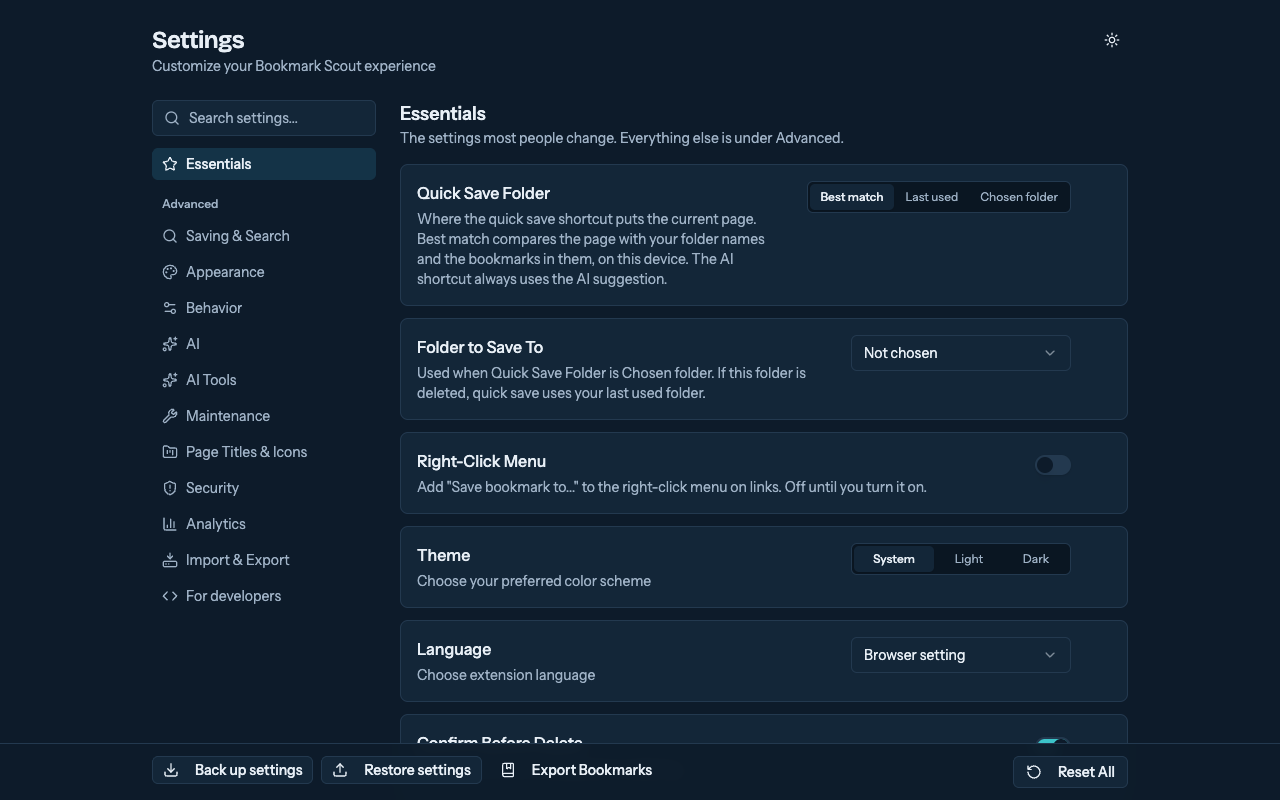
| Theme | System | System, Light, or Dark, applied to every open Bookmark Scout page |
| Show Favicons | On | Show site icons next to bookmarks in the popup and side panel |
| Use the browser's icon cache | Off | Chrome and Edge: also show icons the browser has already cached, for sites without one saved by Refresh Site Icons. Turning it on, here or with Show browser icons on the Refresh Site Icons card, asks for permission to read site icons. Not shown in Firefox, which has no icon cache for extensions |
| Favicon Size | 16px (Small) | 16, 24, or 32 pixels |
Popup
| Setting | Default | What it does |
|---|---|---|
| Popup Width | 400 px | Browsers allow at most 800 px |
| Popup Height | 500 px | Browsers allow at most 600 px |
| Truncate Length | 50 characters | Shortens the page title in the popup's AI suggestions header |
Notifications
| Setting | Default | What it does |
|---|---|---|
| Toast Duration | 4 s | How long messages stay open. Undo messages keep their own 10-second window |
Behavior
Tree and sorting
| Setting | Default | What it does |
|---|---|---|
| Sort Order | Browser Order | Browser Order (as on the bookmarks bar), Date Added (newest first), Alphabetical, or Folders First. Also the manager table's order until you sort it by a column. Changes only how Bookmark Scout shows bookmarks, never the browser's stored order |
| Group by Folders | On | In the popup and side panel, list subfolders before bookmarks at each level |
Links
| Setting | Default | What it does |
|---|---|---|
| Open links in | New tab | New tab, New background tab, or Current tab: where a link opens when you click it in Bookmark Scout. Middle-click and Ctrl/Cmd-click keep working the way your browser does |
Deleting
| Setting | Default | What it does |
|---|---|---|
| Confirm Before Delete | On | Ask before deleting. Every deletion can be undone for 10 seconds either way |
Bookmark manager menus
Choose which commands the manager's right-click and ⋯ menus show, and move them up or down within each group. Restore defaults brings back the full menu. View Details or Copy Bookmark ID always stays, so the menu has a command for any bookmark or folder; where none of the commands you kept applies, the menu says No actions available.
AI
AI is off by default. These settings matter only after you turn on AI Features; until then, the AI settings here and on the AI Tools tab are greyed out under a note saying so. You can still change them. Until the default service is set up, an AI is optional box at the top says what AI does, what it needs, what it may cost, and what is sent, with a link to Set up AI tools.
| Setting | Default | What it does |
|---|---|---|
| AI Features | Off | Turn on the AI tools and the popup's folder recommendations. In Firefox, turning it on asks for your consent to share your API key, bookmarks, and the current page's title and URL with your AI provider |
| AI services | None | The providers you add, each with its own model and key; AI tools use the default service, except that Built-in AI only suggests folders: while it is the default, the other tools use the first other service that is turned on |
Below these, the provider panel holds API Key, Base URL, Custom Model, and Extra Headers JSON, with Verify Service and Refresh Models. The folder limits are sent to the provider as instructions, and its output is not checked against them. See Set up AI tools.
Folder suggestions
| Setting | Default | What it does |
|---|---|---|
| Auto-recommend on Open | Off | Ask for folder recommendations every time the popup opens |
| Max Recommendations | 5 | Most folder recommendations to request |
Read page content
| Setting | Default | What it does |
|---|---|---|
| Read page content | Off | Send the main text of each page, not only its title and URL, to folder recommendations, Auto-Tagging, and Content Summarizer. Asks for website access when turned on |
What Ask AI may do
Every lookup and change Ask AI can make is listed here, and all are on by default. Turn one off and Ask AI is not offered it at all. Applying a plan of changes always asks you first, whatever you choose here.
AI Tools
Each tool has an Enable switch (on by default). Turning one off hides it from the manager's Tools sidebar.
| Tool | Settings and defaults |
|---|---|
| AI Context Packer | Output Format Markdown; Include Folder Paths, Include Dates, Include Saved Tags, and Include Saved Summaries on; Max Items 200; Max Depth 8; Excerpt Length 240 |
| Auto-Tagging | Minimum Tags 2; Maximum Tags 5; Tag Style kebab-case; Merge Mode Append; Remove Duplicate Tags on |
| Content Summarizer | Summary Length 160; Include Domain Hint on; Merge Mode Replace |
| AI Folder Reorganization | Minimum Confidence 55% (moves below it are dropped); Batch Size 100 bookmarks per request |
Auto-Tagging and Content Summarizer always work on the current folder.
AI Folder Reorganization
| Setting | Default | What it does |
|---|---|---|
| Max Categories | No limit | Most top-level folders a reorganization plan may create |
| Min Items Per Folder and Max Items Per Folder | 1 and No limit | Folder size targets for reorganization plans |
Maintenance
| Tool | Settings and defaults |
|---|---|
| Duplicate Cleaner | Match Strategy Normalized URL; Normalize www, Ignore Protocol, and Ignore Trailing Slash on; Keep Rule Oldest; Max Groups 500. Always scans all bookmarks |
| URL Cleaner | Remove Fragments off; Sort Query Parameters and Deduplicate Query Parameters on; Preserve Parameters and Remove Parameters lists |
| Check Dead Links | Request Timeout 8 s; Concurrency 4; Retry Count 1; Follow Redirects on; Success Status Codes 200, 201, 202, 204, 301, 302, 307, 308 |
Tools start on All Bookmarks, so a scan from the folder the manager opens on does not miss the others; change a tool's Default Scope to start on the open folder instead. AI Folder Reorganization starts on the open folder, because a plan for every bookmark sends them all to your AI provider. At the manager's top level, where no folder is open, every tool starts on All Bookmarks.
Lists such as Remove Parameters are edited as chips: type a name and press Enter, or pick a suggestion. Success Status Codes is a checklist of common codes, and you can add others. Each list holds up to 20 entries, and a parameter name up to 32 characters (letters, digits, and URL punctuation), so settings fit in browser sync. The default lists are on Clean up duplicates and tracking URLs. See also Find and repair dead links.
Page Titles & Icons
Metadata Fetcher
| Setting | Default | What it does |
|---|---|---|
| Enable Metadata Fetcher | On | Show Metadata Fetcher in the Tools sidebar |
| Overwrite Titles | Off | Offer new titles for bookmarks that already have one |
| Fetch Descriptions | On | Show page descriptions in the review. They are never saved |
| Request Timeout | 8 s | Per page. Also used by Refresh Site Icons |
| Concurrency | 4 | Pages requested at a time. Also used by Refresh Site Icons |
Refresh Site Icons
| Setting | Default | What it does |
|---|---|---|
| Enable Refresh Site Icons | On | Show Refresh Site Icons in the Tools sidebar |
| Default Scope | All bookmarks | Scope the site icon refresh starts with |
| Preferred Icon Size | 32px | When a page lists several icons, download the one closest to this size |
| Maximum Icon File Size | 64 KB | Larger icon files are not downloaded or saved |
| Icon Storage Limit | 4 MB | Total size of saved icons on this device; the oldest are removed first |
Security
| Setting | Default | What it does |
|---|---|---|
| Enable Privacy Scanner | On | Show Privacy Scanner in the Tools sidebar. It always scans all bookmarks |
| Scan Titles | Off | Check titles as well as URLs |
| Scan Query Parameters and Scan Fragments | On | Check those parts of each URL. A fragment without parameters (#section, #inbox) is flagged only when it holds a key or token |
| Sensitive Parameters | token, access_token, refresh_token, auth, authorization, api_key, apikey, key, secret, password, pwd, code, session | Parameter names to flag |
| Detect Emails and Detect UUIDs | On | Flag email addresses and UUID-like values |
Analytics
| Setting | Default | What it does |
|---|---|---|
| Enable Statistics | On | Show Bookmark Statistics in the Tools sidebar |
| Include Domains, Include Folders, Include Duplicates, Include Protocols, Include Depth Breakdown | On | Sections of the report; a section turned off is hidden |
| Top N Entries | 10 | Length of the top domain and folder lists |
Import & Export
| Setting | Default | What it does |
|---|---|---|
| Show Export Tool and Show Import Tool | On | Show them in the Tools sidebar |
| Default Export Format | HTML | Format selected when the export tool opens |
| Filename Prefix | bookmarks_ | Start of every export file name |
| Max Filename Length | 50 | Longest generated file name |
| JSON Indent Size, HTML Indent Size, Markdown Indent Size | 2, 4, 2 | Spaces per level in each format |
| Include Dates and Include URLs | On | Include them in exports |
See Import and export.
For developers
Local AI agents
Allow local AI agents (off by default, for this device only) lets AI agents on your computer, such as Claude Code, Codex, or Cursor, look up your bookmarks through the bookmark-scout-mcp program, which you install and register with bookmark-scout-mcp install. It does not need AI Features. Turning it on asks your browser to let the extension talk to that program. Allow changes (off by default) also lets them save pages and propose moves, renames, deletions, and new folders; each change opens a Bookmark Scout window where you approve or decline it, and you can undo it in the bookmark manager. The panel below the switch shows whether the program is running.
Hide private values (on by default) replaces sensitive URL parameters, tokens, and email addresses in the titles and URLs agents receive, using the Privacy Scanner's list. What local agents may do lists every lookup, all on by default; one you turn off is not offered to agents at all.
Last updated on