 Bookmark Scout
Set up AI tools
Turn on the optional AI features, choose a provider and model, add your API key, and know exactly what bookmark data each AI tool sends.
AI features are optional and off by default, and Bookmark Scout works fully without them. Bookmark Scout has no AI service of its own. To use AI, you need:
- An account with an AI company, such as OpenAI, Anthropic, or Google. Settings call this company the provider. Most providers charge for each use, usually a small amount; check their prices before you start. An AI program that runs on your own computer, such as Ollama, costs nothing but needs a fairly powerful computer.
- An API key: a secret code from your account page at that company that lets Bookmark Scout use your account. Keep it private, like a password.
You also pick a model: the AI version the company offers, such as a faster or a smarter one. When AI is on, requests go directly from your browser to the provider you chose, with your key.
Before you turn AI on
AI tools send bookmark titles, URLs, and folder names or paths to the provider you configure. The provider handles that data under its own terms, and API use may cost money. Review every suggestion before you apply it.
Turn on AI
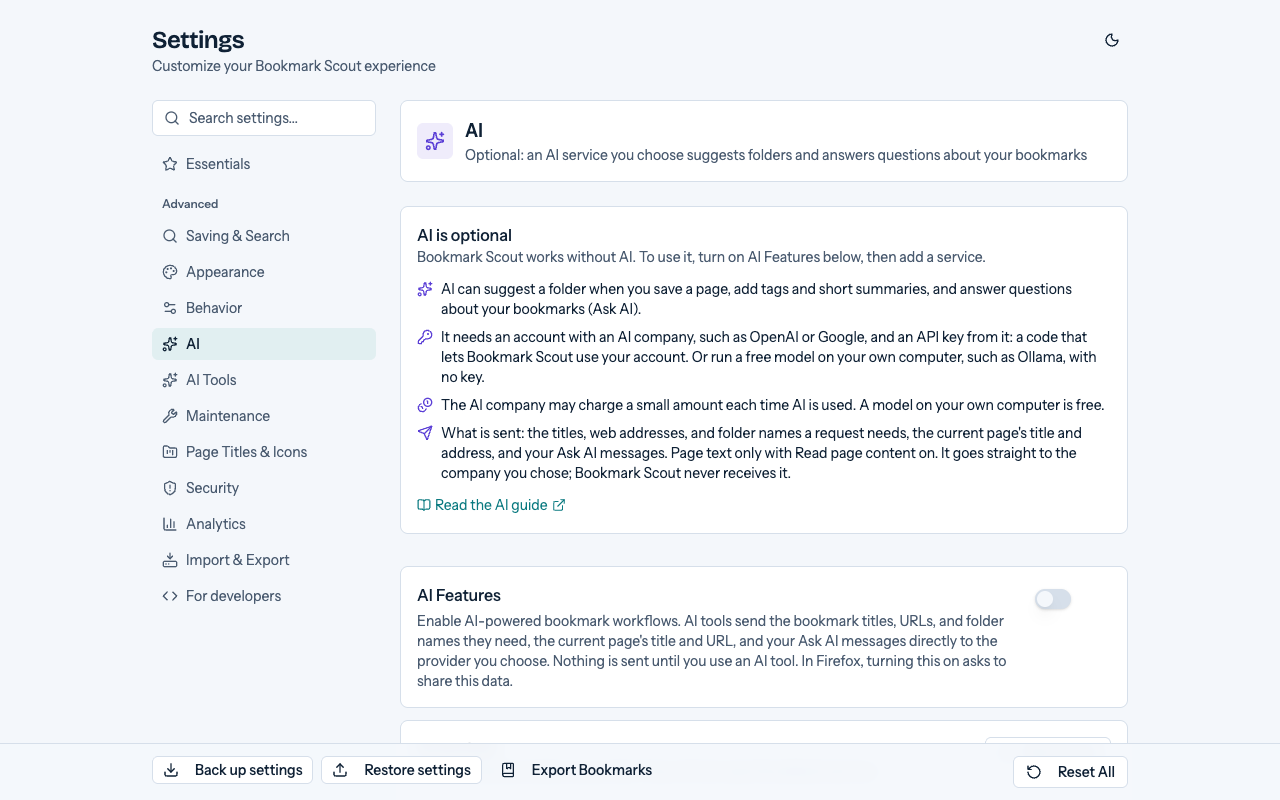
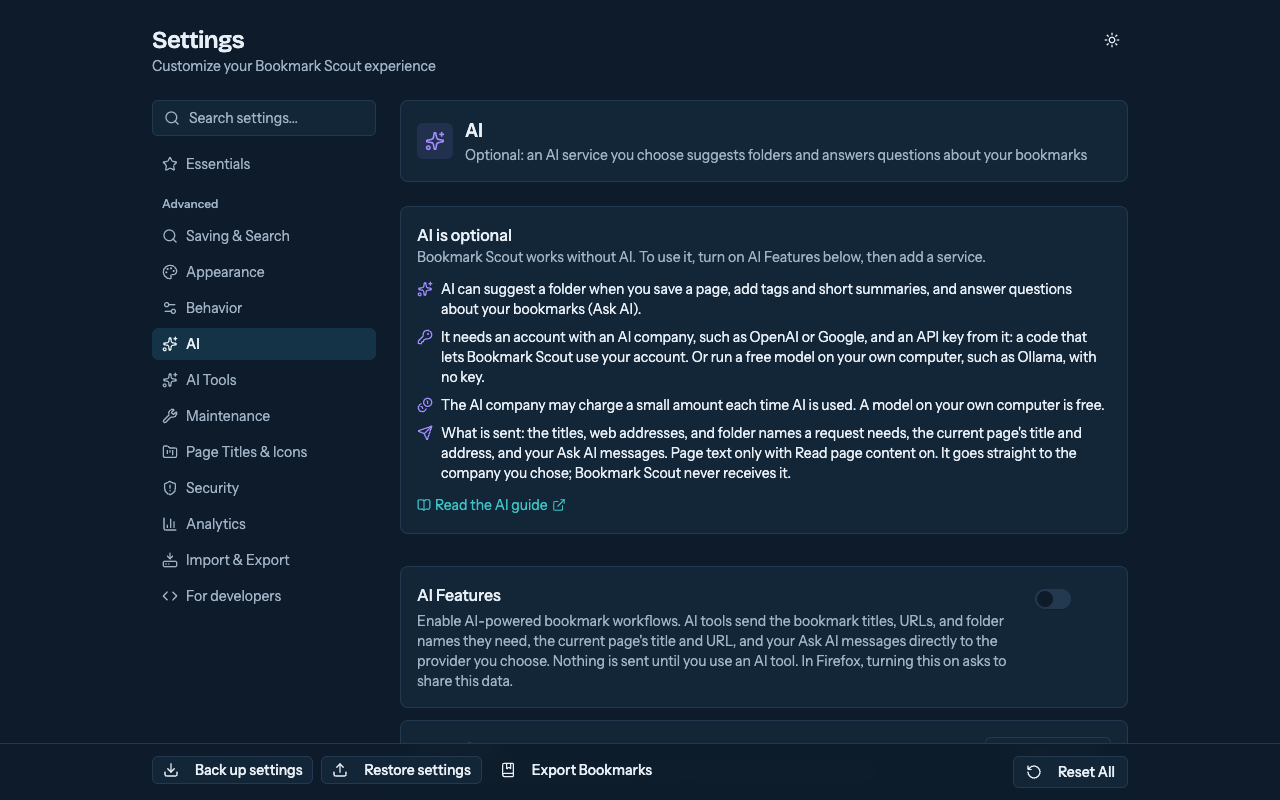
Open Bookmark Scout's settings (in Chrome, right-click the toolbar icon and choose Options) and go to the AI tab. Until a service is set up, a box at the top, AI is optional, sums up what AI does, what it needs, what it may cost, and what is sent.
Turn on AI Features.
Under AI services, click Add service and pick a provider. The picker lists well-known providers under Featured, then Local servers and Custom; type in its search box to find about 200 more under More providers (models.dev). Then choose an AI Model.
Enter your API Key if the provider needs one. For the featured providers, Get an API key from the provider opens the page where you create one after signing in. The key is saved when you leave the field, and stored only on this device. A key that does not match the provider's format is rejected and not saved.
Optional: click Refresh Models to load the provider's current model list, or Verify Service to check that the provider is reachable, accepts the key, and offers the chosen model. Both read the provider's model list, which costs nothing; Verify only sends a short test prompt to providers without a list, such as Azure OpenAI. The browser asks for access to that one provider's address the first time. A refreshed list is kept for the model picker until you refresh again.
The AI buttons in the popup and side panel appear once AI Features is on and the default service is set up (with its key, if the provider needs one). Until then, the popup shows AI is on but not set up yet with Finish AI setup, which opens this tab, and the AI tools in the bookmarks manager stay disabled.
Settings save automatically. AI services, with their API keys, Base URL, and Extra Headers JSON, stay in this browser's local storage and are never synced. Other AI settings, such as whether AI is on, sync through your browser account where the browser supports it.
Free AI on this computer
In Chrome, Bookmark Scout can use Chrome's built-in AI, a small model (Gemini Nano) that runs on your computer: no account, no API key, no cost, and nothing leaves your computer. It suggests folders only.
On the AI tab, click Use built-in AI under Free on this computer, at the top of the AI is optional box. Built-in AI (on this computer) is also first in Add service. Both appear only where Chrome can run the model.
Click Download the model. Chrome downloads it once: about 4 GB on a computer with a graphics card, 2.7 GB without one. When the service says Ready, the model is on this computer. If you close Settings while it downloads, Chrome keeps downloading in the background.
Turn on AI Features if it is off: adding the service does not turn AI on.
- Chrome needs 22 GB of free disk space, and a graphics card with more than 4 GB of memory, or 16 GB of memory and 4 processor cores. On a computer that cannot run the model, or where your organization turned it off, the service says so. Firefox has no built-in AI.
- It only suggests folders: in the popup and side panel, and for the AI quick save shortcut. Ask AI, Auto-Tagging, Content Summarizer, and AI Folder Reorganization use your other service that is turned on, or one you add.
- It reads the page's title and address, the names of the folders that best match it (a short list picked on your device), and with Read page content on, the start of the page's text. It answers only with folders from that list.
- It works best with English, Japanese, Spanish, German, and French. When the model fails or takes too long, the suggestions come from a plain word match on your device instead.
- The popup and the AI quick save shortcut never start the download: until the model is ready, the popup shows Download the built-in AI model in Settings instead of the AI buttons, and quick save uses the best match below.
- AI quick save keeps the model ready for 5 minutes after a save, so the next one is quicker. When the model is not ready, fails, or takes too long, the page is saved to the folder that best matches it, as the Best match setting does.
- With Record requests on, each call appears in AI activity marked On device.
Use more than one service
Save as many services as you like, even several of the same provider: for example a work proxy and a home proxy, each with its own key, address, and model.
- Every AI tool uses the Default service. Choose Set as default in a service's menu, or, when more than one service is turned on, pick one from the arrow next to the sparkle button in the popup.
- Built-in AI only suggests folders: while it is the default, the other AI tools use the first other service that is turned on.
- Turn a service off with its switch to hide it from the popup without deleting it.
- Duplicate copies a service, key included. Delete removes it and its key from this device. Built-in AI can be added only once, so it has no Duplicate.
- Base URL, Extra Headers JSON, and provider-specific fields such as OpenAI's organization sit under More settings.
Providers
| Provider | API key | Notes |
|---|---|---|
| Built-in AI (on this computer) | None | Chrome only, for folder suggestions; see Free AI on this computer |
| OpenAI | Required | Optional Organization ID and Project ID |
| Anthropic | Required | |
| Required | ||
| Groq | Required | |
| Mistral AI | Required | |
| DeepSeek | Required | |
| xAI | Required | |
| Azure OpenAI | Required | Set Resource name (or a Base URL) and enter your deployment name as Custom Model. Azure has no deployment list, so Refresh Models is not shown. |
| OpenRouter | Required | |
| Ollama (Local) | Optional | Default address http://localhost:11434/api; requests stay on your machine |
| CLIProxyAPI | Usually required | Runs on your machine and answers with your own Claude, Gemini, or Codex accounts. Default address http://localhost:8317/v1; enter one of the keys under api-keys in its config.yaml, then Refresh Models to see the models your accounts offer. |
| oMLX, LM Studio, llama.cpp server, vLLM, LocalAI, KoboldCpp, text-generation-webui | Optional | Listed under Local servers with their default localhost addresses: oMLX and vLLM :8000/v1, LM Studio :1234/v1, llama.cpp and LocalAI :8080/v1, KoboldCpp :5001/v1, text-generation-webui :5000/v1. Click Refresh Models to see what the server has loaded. |
| Jan | Required | Local API server at http://localhost:1337/v1; enter the key from Jan's API server settings |
| Custom Provider | Optional | Any OpenAI-compatible endpoint, set with Base URL |
| Custom Provider (Anthropic-compatible) | Optional | Any endpoint that speaks the Anthropic Messages API, set with Base URL |
| About 200 more | Usually required | Listed under More providers (models.dev), for example Together AI, Fireworks AI, Cerebras, DeepInfra, and LM Studio. They have no built-in model list: click Refresh Models or enter a Custom Model. |
The AI Provider picker has a search box. The extra providers come from a copy of the open models.dev catalog that ships with the extension, so choosing one sends nothing to models.dev; requests go only to the provider you pick.
Base URL overrides the provider's address for every request, for example to use a proxy. It must start with http:// or https://. Extra Headers JSON adds headers to every request, and Custom Model sets a model ID for providers that accept any model name.
Local servers
Local servers must accept requests from the extension:
- Ollama: set
OLLAMA_ORIGINS=chrome-extension://*,moz-extension://*and restart Ollama. Without it, Ollama answers 403 and Verify says the server refused the extension. - LM Studio: turn on Enable CORS in the server settings, or start it with
lms server start --cors. - LocalAI: set an API key; its CSRF check rejects keyless requests from the browser.
- text-generation-webui: start it with
--api. - CLIProxyAPI: accepts the extension's requests as configured by default. Start it before you click Verify Service; if it is not running, Verify says it could not reach
localhost:8317.
When a check fails
Verify and Refresh name the likely cause: a rejected key (401, or 400 from Google and xAI), a wrong Base URL (404), a provider that is rate-limiting requests (429, which still means the key works), a server that refused the extension's origin, no answer within 8 seconds, or an address that does not serve a provider API.
Write your own prompts
Each AI tool starts with a built-in prompt. To change how a tool behaves, go to Options, then AI Tools, then Prompts:
- To read a tool's built-in prompt first, click the eye icon next to it. Click Customize, here or in the viewer, and the editor opens with the built-in prompt to start from.
- Edit the text. Click a variable such as
{{maxTags}}to insert it; the tool fills it in from your settings. Preview with current settings shows the result. - Click Save prompt. The new prompt becomes the tool's prompt.
Keep several prompts per tool, up to 10 in all, and switch between them with the tool's menu; Default (built in) goes back to the original. Your prompts sync across your devices through your browser account, so each one must stay under 7 KB. Bookmark Scout adds its own output format rules after your prompt, so results still load even if your prompt asks for something else.
What each tool sends
| Tool | Where | Sends to the provider |
|---|---|---|
| Folder recommendations | Popup, the sparkle button next to the search box (shown only when AI is on) | The current page's title and URL, and your bookmark folder names. With Read page content on, also the page's main text. With Built-in AI, nothing leaves your computer |
| Auto-Tagging | Manager, Tools, AI | Titles, URLs, and folder paths of the bookmarks in the current folder, and with Read page content on, each page's main text |
| Content Summarizer | Manager, Tools, AI | Titles, URLs, and folder paths of the bookmarks in the current folder, and with Read page content on, each page's main text |
| AI Folder Reorganization | Manager, Tools, AI | Titles, URLs, and folder paths of the bookmarks in the scope you choose |
| Ask AI | Popup and side panel, the chat button next to the search box (shown only when AI is on) | Your messages and the conversation so far, and what it looks up: matching bookmarks (with their folders, dates added, tags, and summaries), folder names, the current page's title and URL, whether bookmarked links it checks still work, and with Read page content on, the text of pages it reads |
| AI Context Packer | Manager, Tools, AI | Nothing. It saves a file on your computer and works with AI turned off. |
Turn on Auto-recommend on Open to request folder recommendations every time the popup opens. Leave it off to send a request only when you click the button.
Read page content
Titles and URLs do not always say what a page is about. Turn on Read page content in Options, then AI, and folder recommendations, Auto-Tagging, and Content Summarizer also send the main text of each page. Turning it on asks for access to websites; if you decline, it stays off.
- Bookmark Scout downloads each page itself, without your cookies, so you get the logged-out version of a site. It keeps the article text without menus, scripts, images, or link addresses.
- Each page sends up to about 3,000 characters, and one tool run reads up to 40 pages. Later bookmarks in a large folder are sent with their title and URL only, as are pages that do not load.
- Pages on your local network, such as
localhost, private IP addresses, and.localnames, are never read, so intranet pages do not reach a cloud provider. - Page text comes from the web and could contain instructions aimed at the AI. Bookmark Scout tells the model to treat it only as data, and you still review every suggestion before it is saved.
Ask AI
Click the chat button next to the search box in the popup or side panel to ask about your bookmarks, the page you are on, or anything else. It uses your default AI service; switch services from the menu in its header.
- To answer, the AI can search your bookmarks (also by folder, tag, site, or date added), list your folders, look up bookmarks' tags and summaries, find duplicates, suggest folders for a page, check the current page, and, with Read page content on, read a bookmarked page or the page you are on, and no other page. Once you have allowed access to all websites (for Check Dead Links on more than 20 sites, or for Read page content), it can also check whether bookmarked links still work. When you ask, it can also save a page, and move, rename, or delete bookmarks and create folders: those it first shows as a plan, and nothing changes until you approve it in the chat. After it has read a web page, it asks before saving too. Every change is one step you can undo, also with Ctrl+Z (⌘Z on a Mac) in the bookmark manager. Each step it takes appears in the chat.
- Under some answers, buttons suggest what to do next: ask a follow-up question, pick one of a few options or ideas, save a page to a suggested folder, or open or show a bookmark. Nothing happens until you click one, each works once, and a save can be undone from its notification.
- A save button names the folder and, below it, the page's title and site; point at it to see the full address. It only offers the page you are on, a page the AI found in your bookmarks or read, or an address you typed, never one that appears only in a web page's text. After the chat has read a web page or searched the web, clicking it first asks you to approve saving that page to that folder.
- OpenAI, Anthropic, Google Gemini, and xAI can also search the web. Turn it on with the globe button next to the message box; it stays off until you do, and the provider runs the search itself.
- The conversation is kept only while the chat is open. New chat clears it, and closing the popup ends it.
- The instructions it follows are the Ask AI prompt in the prompt library, so you can view or replace them like any other prompt.
- What Ask AI may do, in Options, then AI, lists every lookup and change it can make. Turn one off and Ask AI is not offered it at all. Applying a plan of changes always asks you first.
- For developers: AI agents on your computer, such as Claude Code, can use the same lookups and changes; see Use with local AI agents.
See what was sent
To check exactly what a tool sent and what the provider answered, go to Options, then AI, and turn on Record requests under AI activity. Each AI call then shows its source, address, status, and time; open one to see the request headers and the request and response bodies, or copy it as JSON for a bug report.
Recording is off by default. The log stays on this device and keeps only the most recent calls. API keys, headers whose names suggest a credential (such as ones containing key, token, secret, auth, or cookie), and every header you set in Extra Headers JSON are replaced with [redacted] before anything is stored, but bookmark titles and URLs in the requests are kept, so turn recording off when you are done: that also deletes the log.
Save a page with a folder recommendation
Click the sparkle button in the popup. Choosing a suggested existing folder saves the page there. Choosing a suggested new folder opens Review new folder with the full path and the page; Create Folder and Save creates only the missing folders and saves the page. If the page is already in that folder it is not saved twice, and if a bookmark already uses one of the folder names in the path, nothing is created. Cancel changes nothing.
Suggest tags and summaries
Run Auto-Tagging or Content Summarizer with Analyze. Suggestions are shown for review, and saved only when you click Save Suggested Tags or Save Suggested Summaries. Merge Mode decides whether saved suggestions are appended to what you have or replace it.
Saved tags and summaries live in this browser's local storage. You can also edit them by hand in Bookmark Details. They are not synced or searchable. A JSON bookmark export includes them, and importing that file gives them to the bookmarks it creates.
The tag count and style, summary length, and reorganization limits in Settings are sent to the provider as instructions; the provider's output is not checked against them.
Reorganize folders
AI Folder Reorganization asks the provider which folder each bookmark belongs in. The plan always opens first as a list of bookmark moves, with moves into new folders marked and counted, and nothing changes until you click Apply Changes.
- Apply Changes moves the bookmarks and creates the new folders the plan names. If a folder with that name already exists in the same place, it is used instead.
- A bookmark you moved, gave a new URL, or deleted after the preview is skipped and left where it is, so the plan never overrides a newer change. When only part of the plan applies, the message counts the moved bookmarks, new folders, and skipped and failed items, and names the skipped bookmarks.
- Click Undo in the message or in the review, or press Ctrl+Z (⌘Z on a Mac) in the bookmark manager, to move the bookmarks back and remove the new folders that are still empty. A bookmark you moved again in the meantime stays where you put it.
Export context for an AI chat
AI Context Packer exports the selected bookmarks as Markdown or XML that you can paste into any AI chat. It can include folder paths, dates, and your saved tags and summaries (Include Saved Tags and Include Saved Summaries). Like bookmark exports, it opens a privacy review when the file would contain values that may be private.
Firefox
In Firefox, open the manager with Open bookmark manager in the toolbar popup to use the manager's AI tools. AI is not covered by the Firefox automated tests.
Last updated on