 Bookmark Scout
Clean up duplicates and tracking URLs
Remove duplicate bookmarks after a review, strip tracking parameters such as utm_source from bookmark URLs with a preview first, and refresh missing site icons.
Both tools live in the Tools sidebar of the bookmarks manager, under Maintenance. In Chrome, open the browser's bookmarks page, then click Show tools in the manager's header if the sidebar is hidden.
Firefox
Firefox does not let extensions replace its own bookmarks page, so open the manager there with Open bookmark manager in the toolbar popup, then open the Tools sidebar.
Remove duplicate bookmarks
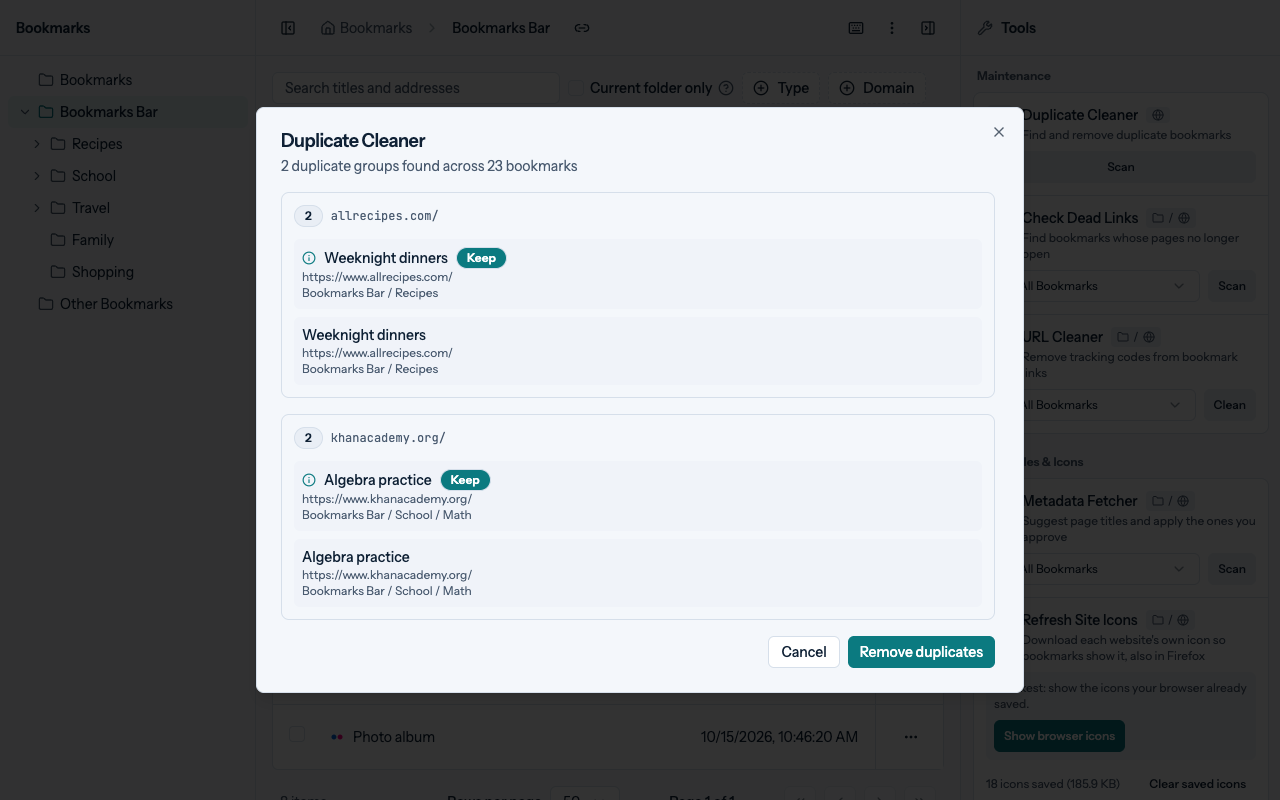
In Duplicate Cleaner, click Scan. It always checks all bookmarks.
Review the groups. Each group lists bookmarks that match, with the one that will stay marked Keep.
Click Remove duplicates to delete the other copies in every group, or Cancel to change nothing.
Changed your mind? Click Undo in the message within 10 seconds to restore what was removed. Later, Ctrl+Z (⌘Z on a Mac) in the bookmark manager restores it too.
What counts as a duplicate is set on the Maintenance tab of Settings:
| Setting | Default | What it does |
|---|---|---|
| Match Strategy | Normalized URL | Compare by Exact URL, Normalized URL, Title + URL, or Title only |
| Normalize www | On | Treat www.example.com and example.com as the same host |
| Ignore Protocol | On | Treat http and https versions as duplicates |
| Ignore Trailing Slash | On | Treat URLs with and without a trailing / as duplicates |
| Keep Rule | Oldest | Keep the Oldest, the Newest, or the First found bookmark in each group |
| Max Groups | 500 | Most groups returned by one scan |
Before removing anything, each group is checked again. If the bookmark marked Keep was deleted or now points elsewhere, the whole group is left untouched and the message says how many groups were skipped. With Title only matching, a warning appears when a group contains different URLs, because removing those copies deletes different pages.
Strip tracking parameters
In URL Cleaner, choose the current folder or all bookmarks in the scope menu, and click Clean.
Review the preview of every URL that would change.
Click Apply Changes to update them all, or close the dialog to change nothing.
If a bookmark changed after the preview, it is skipped and counted in the message. Click Undo in the message, or press Ctrl+Z (⌘Z on a Mac) in the bookmark manager, to put the old URLs back; a bookmark changed again since is left as it is.
The rules are on the Maintenance tab of Settings:
- Remove Parameters: parameters to strip. The default list is
utm_source,utm_medium,utm_campaign,utm_term,utm_content,utm_id,gclid,fbclid,mc_cid,mc_eid,ref,ref_src, andsi. - Preserve Parameters: parameters that are never removed. Default:
id,page,q,p, andlang. - Deduplicate Query Parameters (on by default) removes repeated parameters.
- Sort Query Parameters (on by default) sorts the remaining parameters alphabetically.
- Remove Fragments (off by default) also removes parts such as
#section.
Refresh site icons
Bookmarks show a generic globe until Bookmark Scout has an icon for the site. In Chrome and Edge, the quickest way is Show browser icons on the Refresh Site Icons card, or Use the browser's icon cache in Settings: it shows the icons your browser already saved for the sites you visit, and the browser only asks to read site icons. For sites the browser has no icon for, and in Firefox, which gives extensions no icon cache, Refresh Site Icons, under Page Titles & Icons in the Tools sidebar, downloads each site's own icon.
Choose the current folder or all bookmarks in the scope menu, and click Refresh. When asked, allow access to the sites in that scope (a scope with more than 20 sites asks for all websites); if you decline, nothing is requested.
Review the results: how many icons are Updated, Unchanged, No icon found, or Failed, and how many bookmarks were Skipped because they are not web links.
Click Save (for example Save 12 icons) to keep them, or close the dialog to keep nothing.
For each website (origin) in scope, the tool requests one bookmarked page without cookies, reads only its head, and downloads the icon the page lists that is closest to Preferred Icon Size, or the site's /favicon.ico. Only icon files on the bookmark's own domain are used, never a third-party icon service. Files over Maximum Icon File Size (64 KB) or that are not images are skipped.
Saved icons are stored in this browser's local storage, not synced, and show in the popup, side panel, and manager. They take priority over the browser's cached icon. The card shows how many are saved; Clear saved icons deletes them all. When the total reaches Icon Storage Limit (4 MB), the oldest icons are removed first. A site that fails on a later refresh keeps the icon saved earlier.
Firefox
In Firefox, open the manager with Open bookmark manager in the toolbar popup to run the tool. After you save icons there, the popup and side panel show them.
Related tools
- Find and repair dead links checks whether bookmarked pages still load.
- Privacy Scanner (under Security) flags URLs that contain tokens, email addresses, UUIDs, or sensitive parameters (and titles, if Scan Titles is on), so you can edit or delete them yourself. Ordinary in-page links and app addresses such as Gmail's
#inboxare not flagged. - Metadata Fetcher (under Page Titles & Icons) suggests page titles from the live pages and applies only the ones you select. It uses the same website access as the dead link check.
Last updated on
Save and organize
Save the current page or a link into a folder, create folders, move items with drag and drop, sort the tree, and delete with an undo.
Find and repair dead links
Scan bookmarks for dead links, see which ones need a manual check, and repair them by deleting, following a redirect, using an archived copy, or editing the URL.