 Bookmark Scout
Your first save
Add Bookmark Scout to Chrome, pin it, and save your first page to the right folder by typing part of the folder's name. Then save with one key.
This takes about a minute. You need Chrome on a computer and at least one bookmark folder.
Add Bookmark Scout to Chrome
Install Bookmark Scout from its Chrome Web Store listing.
On the listing, click Add to Chrome, then Add extension. Chrome asks for one thing only: to read and change your bookmarks. A page titled Bookmark Scout is ready then opens in a new tab with the steps below in short; it shows the keys your quick save shortcut actually got. Using Firefox or Edge? See Install.
Pin the icon
Click the puzzle-piece Extensions button at the right of Chrome's toolbar, then the pin next to Bookmark Scout. Its icon now stays in the toolbar, one click away.
Save the page you are on
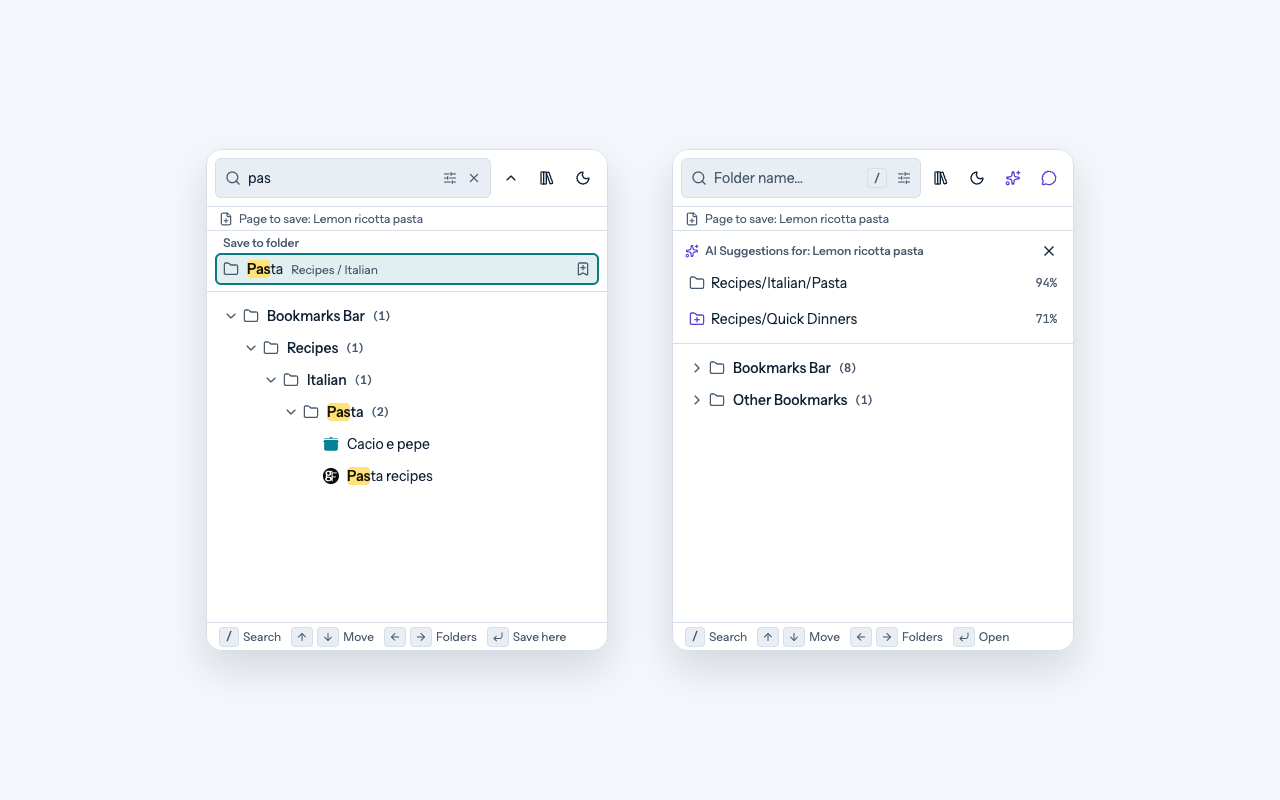
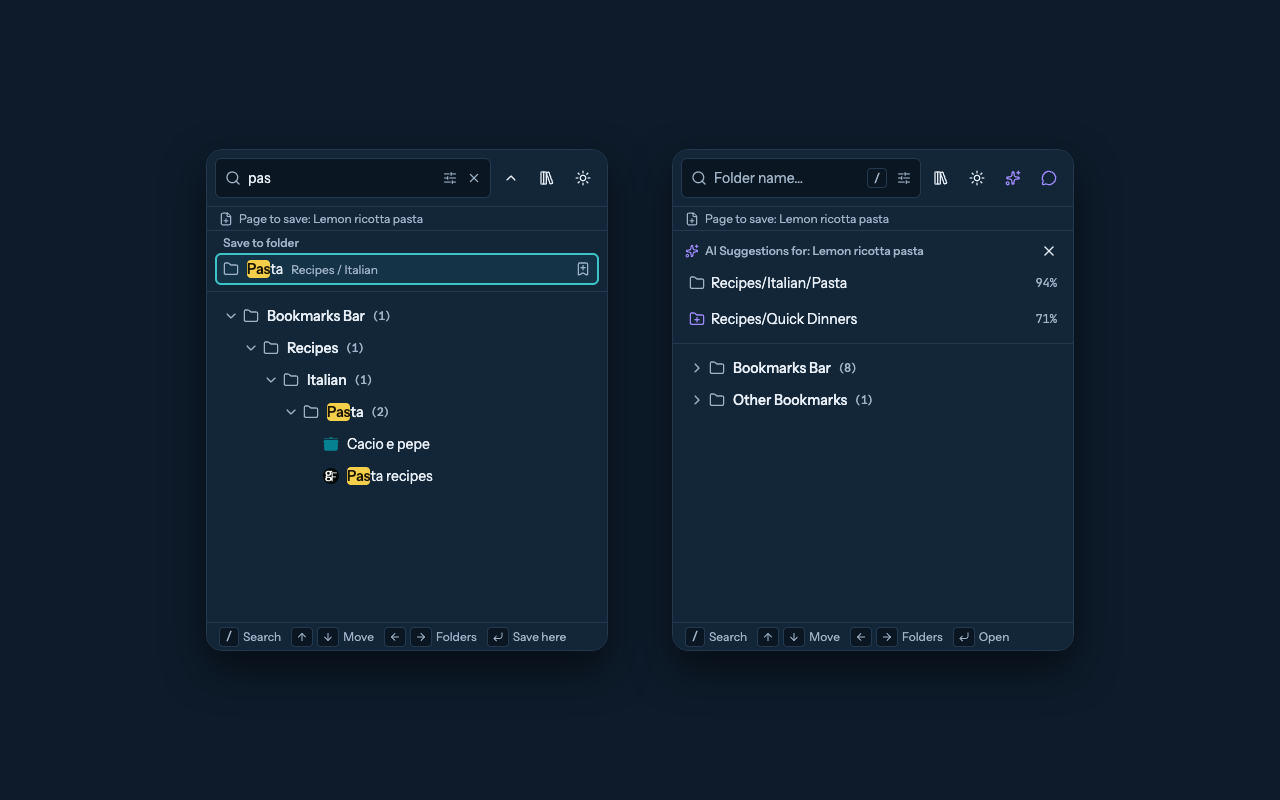
Open any page you want to keep and click the Bookmark Scout icon. The line under the search box, Page to save, shows the page's title.
Type part of a folder's name, such as pas for a folder called Pasta. Matching folders appear under Save to folder, best match first. The first one is highlighted: press Enter to save there, or click any folder. Bookmark Added confirms the save.
Next time, press one key
On any page, press Alt+Shift+S (⌥⇧S on a Mac). Bookmark Scout saves the page to the folder that fits it best, without opening anything. A small message in the corner of the page says where it went. Click Undo in it to take the save back, or pick another folder under Move to.
If something is different
- The folder you want is not listed. Type a different part of its name, or a few letters of the folder it is in, such as
recipes pas. A small typo is fine. - The key does nothing. Another extension may already use it. Open the Bookmark Scout icon: the line Quick save shortcut not set has Set it up. See Save with a keyboard shortcut.
- The page was already saved. Bookmark Scout does not save it twice; the message says where it is.
What next
- Save and organize: more ways to save, create folders, and move bookmarks.
- Search: find any bookmark by a word in its title or address.
- Clean up: remove duplicates and tidy messy addresses.
Last updated on
Introduction
Bookmark Scout saves each page to the right bookmark folder when you type part of the folder's name or press one key, then helps you find, tidy, and clean up your bookmarks, all inside your browser.
Install
Add Bookmark Scout to Chrome from the Chrome Web Store. Firefox and Edge versions are coming soon to their stores.