 Bookmark Scout
Save and organize
Save the current page or a link into a folder, create folders, move items with drag and drop, sort the tree, and delete with an undo.
Save the page you are on
Open the page you want to keep and click the Bookmark Scout icon in the toolbar, or open the side panel.
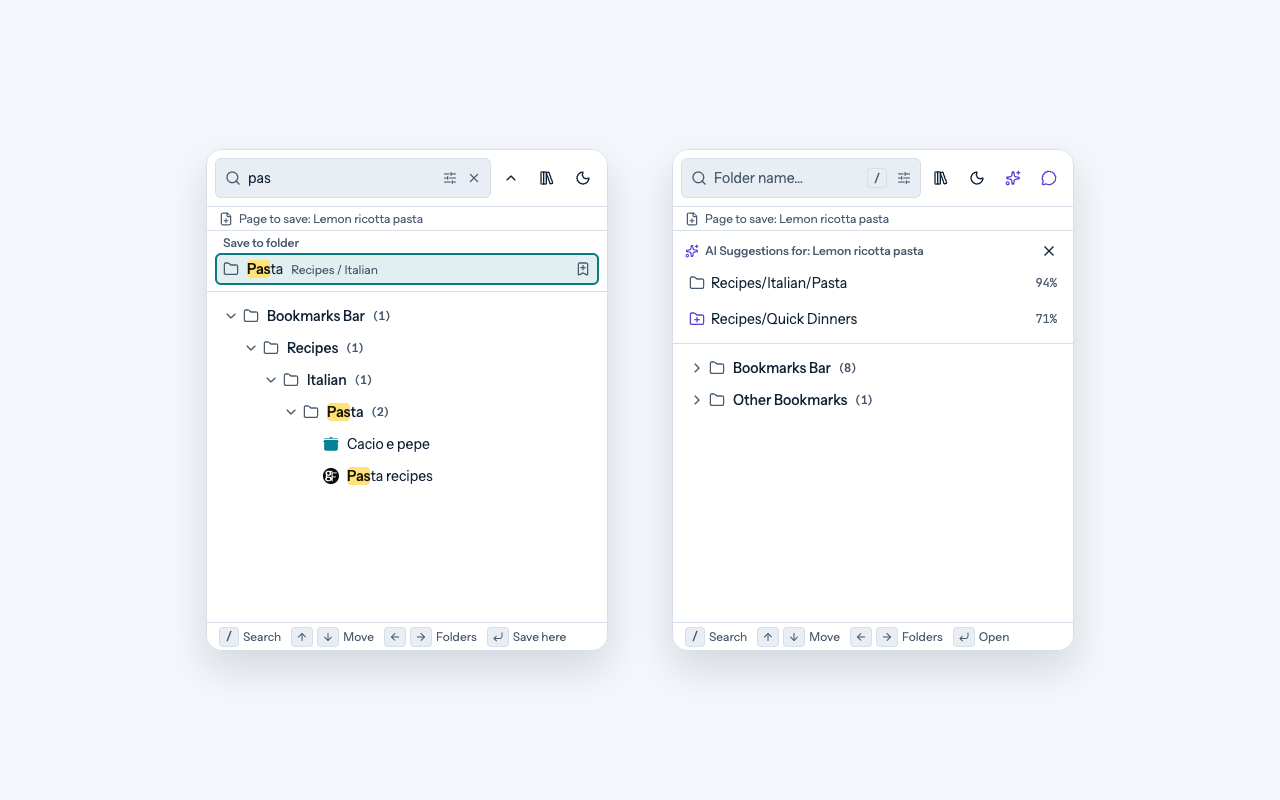
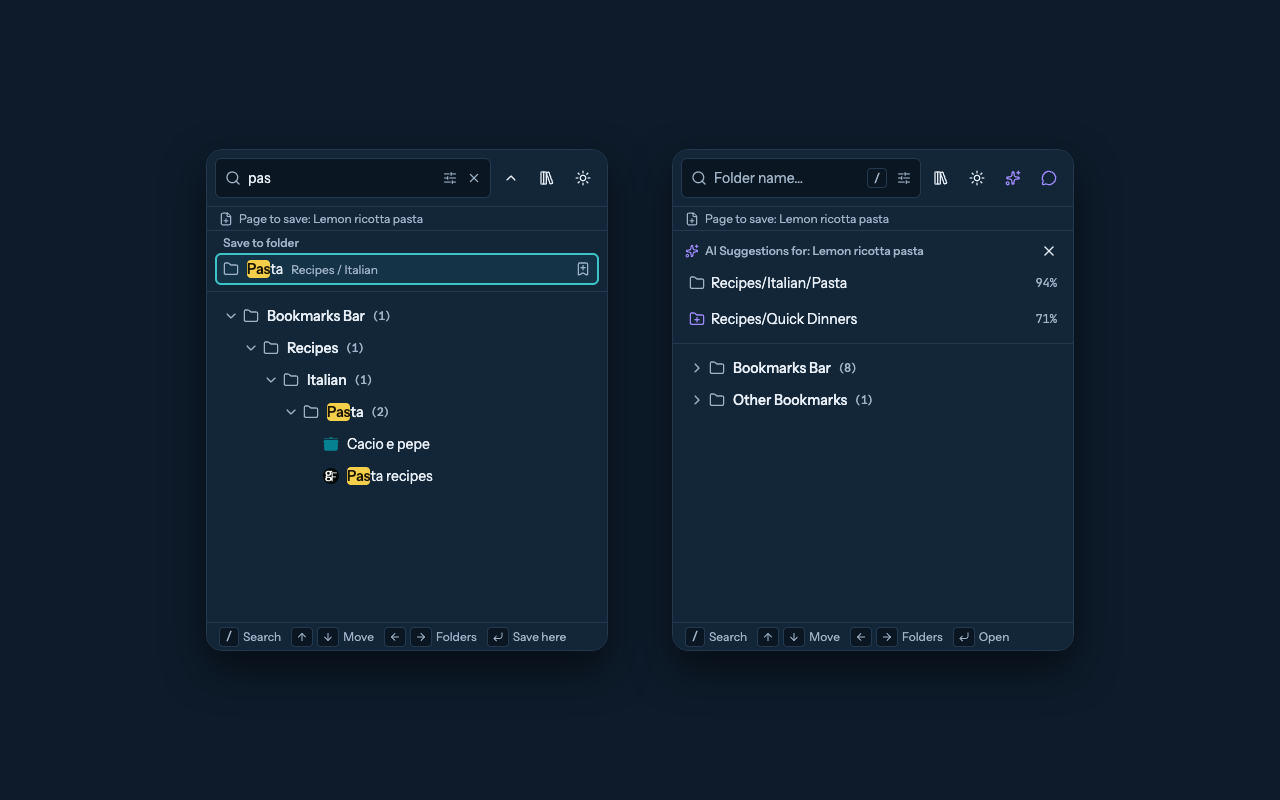
Type part of a folder's name in the search box. Save to folder lists the matching folders above the results, best match first, with the folders they are in.
Press Enter to save to the first folder, which is highlighted, or click a folder. To pick another folder with the keyboard, press ↓ to move to it and then Enter.
The line under the search box, Page to save, names the page a save adds. When the page is already bookmarked, Already saved in under it names the folder. Saving it into another folder adds another copy, and the message after the save says so. Several words also match the folders around a folder (recipes pasta), and a word of 4 letters or more may have one typo.
Other ways to choose the folder:
- Recent: the Recent panel lists the folders you saved to lately; click one to save the page there.
- Browse: point at a folder in the tree and click Add current page, or move to it with the arrow keys and press
Enter.
A page that is already in the folder is not saved twice; the message says it is already there.
The toolbar popup reads the page you clicked it on without asking. The side panel stays open while you switch tabs, so the first time you save from it, Bookmark Scout explains and then asks for access to your tabs. If you decline, nothing is saved; the toolbar icon and the quick save shortcut below still work without that access.
To change these lists, use Settings: Folder Matches, Maximum Folder Matches, and Allow Typos for Save to folder, and Recent Folders and Recent Folders Max for the Recent panel.
Save with a keyboard shortcut
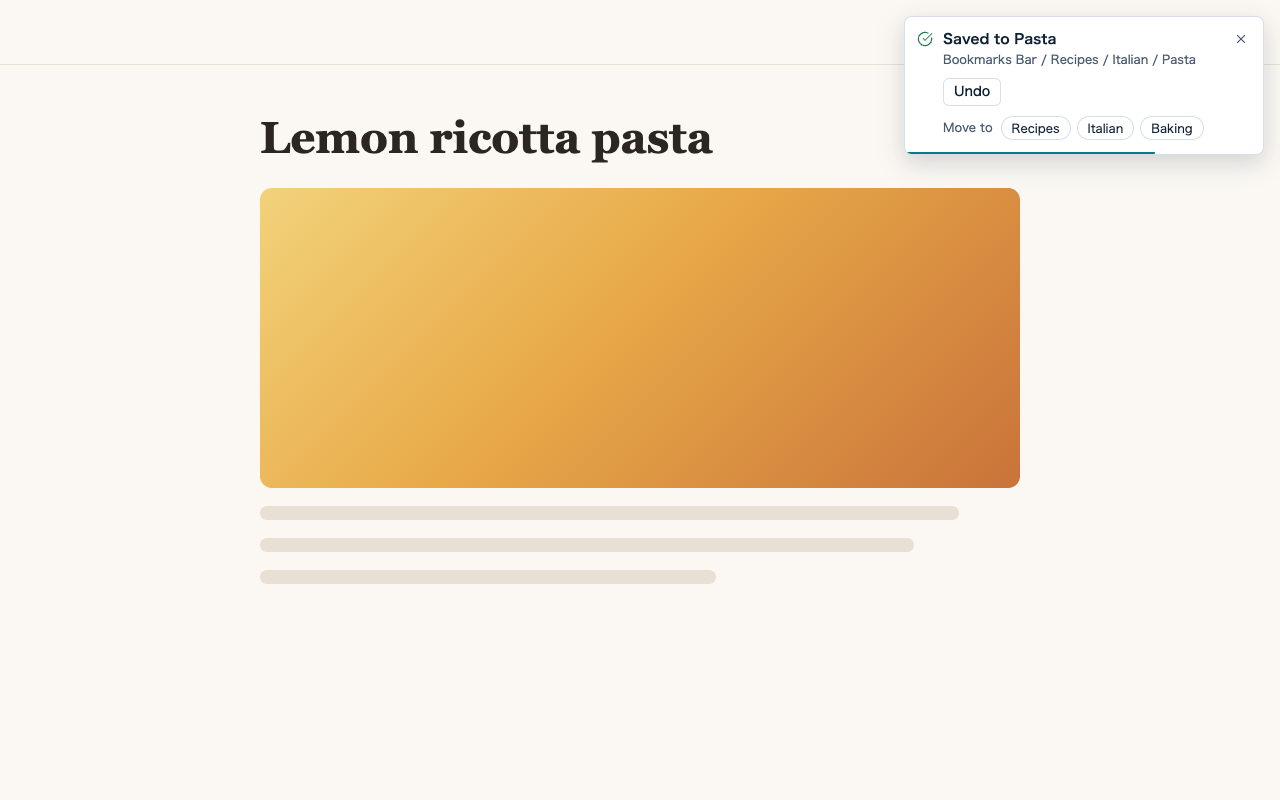
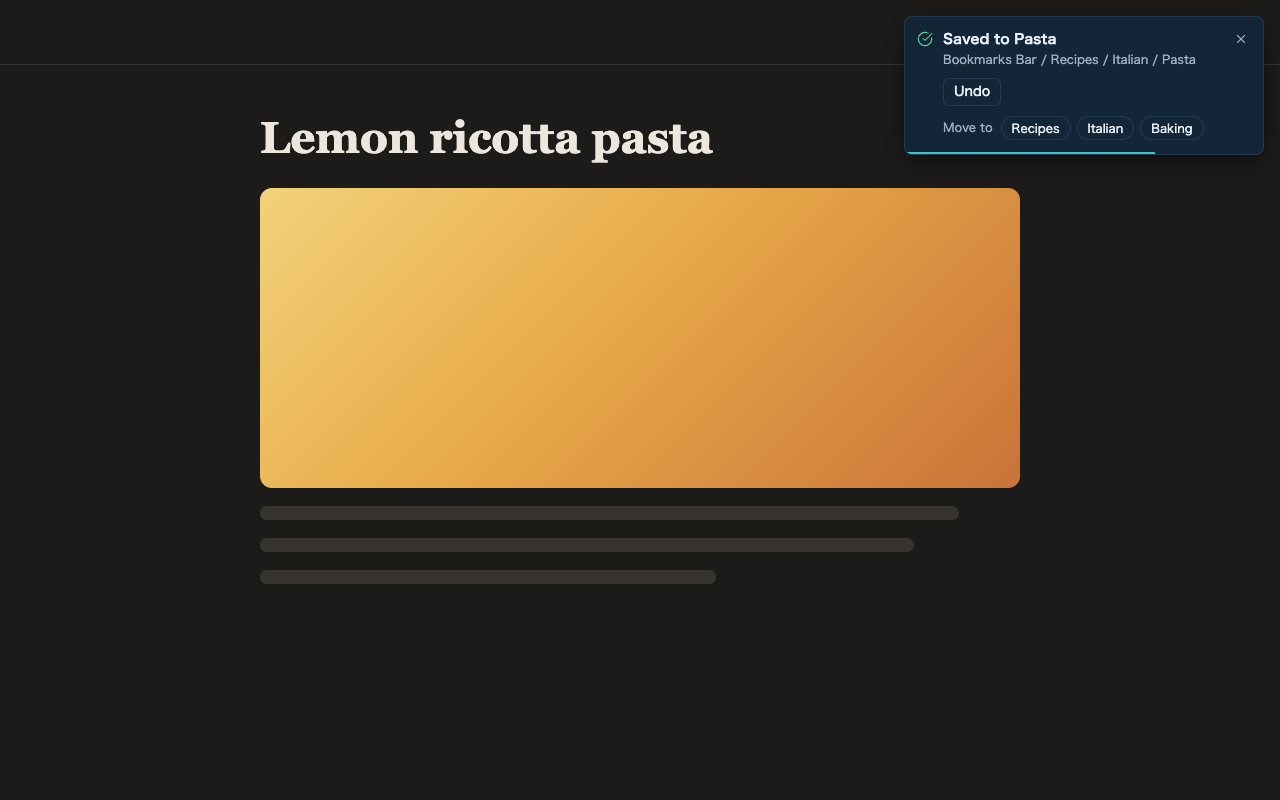
Press Alt+Shift+S (⌥⇧S on a Mac) on any page to save it without opening Bookmark Scout. A small notification in the top corner of the page says which folder it went to, with Undo and a few other folders under Move to. It closes on its own after a few seconds; hovering it or tabbing to it keeps it open, and Esc closes it. It never takes the keyboard from the page.
Where the page goes is Quick Save Folder in Settings:
- Best match (the default) compares the page's title, site, and address with your folder names, the folders around them, and the titles and sites of the bookmarks already in each folder, all on your device. Chinese, Japanese, and Korean titles work too. Move to offers the next best folders.
- Last used saves to the folder you saved to most recently; Move to offers your other recent folders.
- Chosen folder always saves to the folder you pick in Folder to Save To.
When no folder matches well, or the chosen folder was deleted, the page goes to your last used folder, then the bookmarks bar, and the notification says so.
Press Alt+Shift+D (⌥⇧D on a Mac) to save the page to the folder AI suggests instead. It uses the same AI service, page reading, and suggestion count as the popup's AI suggestions, and sends the same data (see Set up AI tools). The notification shows Choosing a folder with AI... while it waits, then lists the other suggestions under Move to; a suggested folder that does not exist yet is created, and Undo removes it again. With AI off or not set up, nothing is saved and the notification offers Open AI settings. When AI cannot choose a folder, the notification offers Retry, which asks AI again, and Save without AI, which saves the page to the folder Quick Save Folder picks. If you leave the page before AI answers, the result shows in the popup instead, under the page's title.
A page you have already bookmarked is not saved again: the notification says where it is and offers to move it.
Undo and Move to work on your latest quick save only. If you quick save in another tab and then press Undo in the first tab's notification, it says a newer quick save replaced it; change that bookmark in the bookmark manager instead.
Some pages do not let extensions show anything on them, such as the browser's own pages, the extension store, and the PDF viewer, and a few pages hide what is drawn over them. There the toolbar icon shows ✓ or ✗ for a moment, and the popup opens (where the browser allows it) with the page's title and the same buttons.
To change the keys, open Keyboard shortcuts in Settings:
- Chrome and Edge keep the keys themselves. Change shortcuts opens
chrome://extensions/shortcutsoredge://extensions/shortcuts, which lists every extension; find Bookmark Scout there. - Firefox lets Bookmark Scout set them. Click a shortcut field and press the new keys: hold
CtrlorAlt(on a Mac,Command,Control, orOption), addShiftif you like, and press a letter, number, function key, or arrow key. Function keys also work on their own.Esccancels,Tabmoves on without recording, and the reset button next to a field restores the default. A combination Firefox cannot use is explained under the field. Change shortcuts opens Firefox's Manage Extension Shortcuts page instead.
If another extension already uses a key, the browser leaves the shortcut unset and Settings shows Not set. The popup and side panel then show Quick save shortcut not set above the shortcut hints, with Set it up, which takes you to the place above where you can set it. Close the line with its Dismiss button if you do not want the shortcut; it stays hidden on that device.
Use the bookmark key for quick save
Ctrl+D (⌘D on a Mac) opens the browser's own bookmark dialog, and no browser lets an extension take it as a default key, so quick save starts on Alt+Shift+S (⌥⇧S on a Mac).
- Chrome and Edge let you give it to quick save yourself. Under Keyboard shortcuts in Settings, Use Ctrl+D (⌘D on a Mac) for quick save opens the browser's shortcut page: find Bookmark Scout, click the pencil next to Quick save the current page, and press the bookmark key. From then on that key saves with quick save instead of opening the bookmark (or favorites) dialog. To get the dialog back, clear that shortcut on the same page. Until you do, the popup and side panel name the keys quick save has now, Quick save: press Alt+Shift+S (⌥⇧S on a Mac) on any page, with Use Ctrl+D (⌘D on a Mac) instead, which opens these steps in Settings; Dismiss hides the line on that device. In Firefox the line names the keys only.
- Firefox always handles Ctrl+D (⌘D on a Mac) (bookmark this page) and Ctrl+Shift+D (⌘⇧D on a Mac) (bookmark all tabs) itself, even when an extension sets them, so the shortcut fields refuse both.
Save a link with the right-click menu
First turn on Right-Click Menu in Settings; it is off by default. Then right-click any link on a page and choose Save bookmark to..., then pick one of your recent folders or the Bookmarks Bar. Bookmark Name Source in Settings chooses whether the bookmark is named after the link text, the page title, or the link URL. Turn the menu off with Right-Click Menu (both are on the Data tab).
Create folders
Hover a folder in the popup or side panel and click Add folder, then type the name. New folders start with the Default Folder Name from Settings.
Move bookmarks and folders
- Drag and drop in the popup or side panel. Dropping beside an item in another folder moves it into that folder. Reordering inside a folder works with the Browser Order sort (the default) and Folders First; with the other sorts, a drop moves the item into another folder, and a hint says so while you drag. A folder cannot be moved into itself or one of its subfolders.
- Drag and drop in the manager, as in Chrome's: drag a row, or a selection of rows, onto a folder row or a folder in the folder tree to move it there; the top and bottom edges of a folder in the tree drop beside it instead. Hovering a closed folder in the tree during a drag opens it. While the table is in the browser's order (see below), dropping between rows also reorders. Each drop is one Ctrl+Z (⌘Z on a Mac) step.
- Links from other pages and apps: drop a link, or text with URLs, on the manager's table or a folder in its tree to bookmark it there. Dragging rows out to another app or page carries their URLs.
- Several at once in the manager: select rows in the table, then use Move to folder and choose the destination. Items are added at the end of that folder.
- Reorder in the manager: the table shows the browser's order by default. If you sorted by a column or chose another Sort Order, the text beside Browser order names that order; click Browser order to go back. Then drag rows, or use the Move up, Move down, Move to top, and Move to bottom buttons on the row. They need the table to show one folder, so clear filters or check Current folder only.
Reordering changes the browser's saved order. The popup shows that order with the Browser Order sort (the default) and Folders First; date and alphabetical sorting keep re-sorting the list.
The popup and side panel refresh on their own when bookmarks change elsewhere, such as in the manager or in the browser's own bookmark UI.
Sort the tree
Choose Browser Order (the default: the order you see on the bookmarks bar), Date Added (newest first), Alphabetical (natural order, so 2 comes before 10), or Folders First with Sort Order in Settings. Sorting changes only how Bookmark Scout shows the tree, never the browser's stored order. The manager's table uses the same order until you sort it by a column. Group by Folders lists subfolders before bookmarks at each level of the popup and side panel.
Edit a bookmark
In the manager, open a row's menu and choose Edit to change a bookmark's name and URL, or a folder's name. View Details shows the full path, dates, and ID, and is where you add Tags and a Summary.
Tags and summaries are stored only in this browser's local extension storage. They are not synced or searchable. JSON bookmark exports include them, and AI context exports can too; see Import and export and Set up AI tools.
Delete and undo
Delete a bookmark or folder from the popup, the side panel, or a manager row's menu, or select several rows in the manager and delete them together.
- Confirm Before Delete is on by default and shows a dialog naming what will be removed. Turn it off on the Behavior tab of Settings to delete immediately.
- Every deletion shows Undo for 10 seconds. Undo restores the item, everything inside it, and its saved tags and summaries. A restored item is recreated, so it gets a new date added.
- Permanent folders such as the Bookmarks Bar cannot be edited or deleted.
Select, undo, and redo in the manager
The manager's table works like Chrome's bookmark manager:
- Click a row to select it,
Ctrl+click (Cmd+click on a Mac) to add or remove one, andShift+click to select a range. The checkboxes work too. Ctrl+A (⌘A on a Mac) selects every row the filters show, on every page, and Esc clears the selection. - Double-click a folder to open it, or a bookmark to open it in a tab. Middle-click a bookmark to open it in a background tab.
- Ctrl+Z (⌘Z on a Mac) undoes the manager's changes one at a time, newest first: edits, moves, reorders, and deletions. It also undoes pages saved, folders created, and items dragged in the popup and side panel, and changes you approved from Ask AI or a local AI agent. It also undoes what a tool in the Tools sidebar changed (Duplicate Cleaner, URL Cleaner, Check Dead Links repairs, Metadata Fetcher titles, and AI Folder Reorganization) as one step, the same step the Undo in the tool's message undoes. Ctrl+Y or Ctrl+Shift+Z (⇧⌘Z on a Mac) redoes them. Several items changed together, such as a move of a selection, are one step. A very large deletion is kept compressed; one too large even then is left out of the history, keeping the earlier changes, and its toast says that only its Undo can bring it back.
- Undo leaves alone anything changed since in another way (in the browser's own bookmark UI, another window, or by sync) and says so.
- The history is shared by every manager tab, survives reloading the page, and ends when the browser closes. It keeps the last 100 changes.
The folder tree on the left works like Chrome's too: the arrow keys move through it and open and close folders, and Enter shows a folder in the table. If Chrome keeps some of your bookmarks in your Google Account and others only on this device, the tree shows them under In your account and Only on this device, with the second closed at first.
The full list of keys is in Keyboard shortcuts.
Right-click menus in the manager
Right-click a row, or a folder in the folder tree, for the same commands as Chrome's bookmark manager. A right click on a selected row acts on the whole selection; on any other row it selects that row first. The menu key or Shift+F10 (⇧F10 on a Mac) opens it from the keyboard. A row's ⋯ button opens the same menu for that row.
- Edit (a bookmark) or Rename (a folder), Show in folder (search results), and View Details.
- Cut, Copy, and Paste. Copy puts the bookmarks' URLs on the clipboard, one per line (and as links, for apps that take formatted text), so they paste into other apps too. Paste in a row's menu pastes after that row in the folder shown; in a folder's menu in the tree, it pastes into that folder. Copied items paste as copies of the items as they are when you paste, including everything inside a copied folder; cut items move when you paste them, and stay where they are until then. What you cut or copy pastes in any manager tab and after a reload, until the browser closes; items deleted since are skipped, and cut items that could not move (a folder pasted into itself) stay cut. Add new bookmark completes an address typed without a scheme, such as
example.com/path, tohttps://. Ctrl+C (⌘C on a Mac), Ctrl+X (⌘X on a Mac), and Ctrl+V (⌘V on a Mac) do the same for the selection, and paste also turns URLs copied in another app into bookmarks. - Open in new tab, Open in new window, and Open in incognito window (InPrivate in Edge, a private window in Firefox, where it needs the extension to be allowed in private windows). For several items or a folder they read Open all (12) and open the bookmarks in the selection and those directly inside its folders, not in subfolders. More than 15 tabs asks first.
- Copy link to this folder and Copy Bookmark ID, and Delete.
Right-click the empty space of the table, or open Organize (⋮) in the header, to Add new bookmark or Add new folder at the end of the folder shown, or to Paste. Organize also has Sort by name, which reorders the folder in the browser itself: folders first, then by name, in natural order (2 before 10). Like every change in the manager, Ctrl+Z (⌘Z on a Mac) undoes it.
Last updated on
Search and saved searches
Find any bookmark by title or URL from the popup or side panel, filter the manager's table, and keep filter combinations as named saved searches.
Clean up duplicates and tracking URLs
Remove duplicate bookmarks after a review, strip tracking parameters such as utm_source from bookmark URLs with a preview first, and refresh missing site icons.